Showing posts with label Code. Show all posts

Thursday, September 23, 2010

Swamp Coast FLA Code Camp #3- Data Driven .NET Apps Code Crackin #31

Swamp Coast FLA Code Camp
Data Driven .NET Apps Code Crackin #31

Hey Now Everybody,

In this Post:
1 Swamp Coast Overview
2 Data Driven .NET App Session Overview
3 Vid of Session Content
4 List of Speakers (blog & twitter links)
5 Session Resources Links
6 DAL class file Code

1 Swamp Coast Overview
The Swamp Coast Code Camp #3 in SWFla is gonna be another stellar event. This code camp is @ FGCU which provided a nice venue. The best part of code camps is all the people that are there to talk tek with. I”m really looking forward to relaxin with my geek friends & learning a bunch. There are going to be some great sessions there some that I’m looking forward to seeing are mostly in WP7Dev such as:

Design for WP7 – Diane Leeper
Push Notification with Windows Phone 7 Jonas Stawski
WP7 – Tips & Tricks Kevin ‘WolfBytes’ Wolf
WP7 Marketplace, Panel, Install Fest Nikita Polyakov

Special thanks to John Dunagan & all the people who volunteered to make this event possible.

2 Data Driven .NET App Session Overview
This year my session is going to Data Driven .NET Applications. This session will be fun with a ton of content. It’s meant for any skill level, the main concept we’re going to discuss is to have content of apps driven by a data source not just static. There will be a great mix of theory & code. Here is what I plan to discuss:

DB Driven Mindset - Static vs.. Data Drive Apps
DB Dev / T-SQL
Web App ASP.NET
Data Access ADO.NET
WP7 - XML RSS Data Source
(more detailed list below)

3. Vid of Session Details


Here are some details:

DB Driven Mindset - Static vs.. Data Drive Apps
Overview & Advantages of Apps that display content from a data source
DB Dev / T-SQL
Fundamentals to Database Development
Query Window vs.. Design View
Stored Procedures
Advanced T-SQL Topics
Web App ASP.NET
Intro ASP.NET & VS10 as an IDE
.NET Controls
UI – Master Pages & CSS
Debuggin
Data Access
ADO.NET
Web Services
XML / RSS
WP7
WP7 Overview (IDE & Marketplace)
WP7 Catto Free App (my open source WP7 App)
XML RSS Data Sources
Other WP7 Apps on Emulator

4 List of Speakers (blog & twitter links)

There are many great people who are going to be there here is a list of most that I put together along with there twitter:

LIST OF TWEEPS:

Duray Akar @durayakar
Colin Blakey @ Colin Blakey
Jyoti Chawla
Oleg Sych @olegsych
Michael Wells
Jay Hill
@jittery
Ken Tucker
John McFetridge
Kathy Malone
Keith Kabza @KeithKabza
Henry Lee
Greg Leonardo @biztalkdev
Christopher Bennage @bennage
Sam Abraham @wildturtle21
Todd Anglin @toddanglin
Jason Beres @jasonberes
Scott Dorman @sdorman
Chris Eargle @kodefuguru
Jason Milgram @jmilgram
Nikita Polyakov @nikitap
Herve Roggero @hroggero
Stan Shultes @fstanschultes
Jonas Stawski @jstawski
Max Trinidad @maxtrinidad
Alex Funkhouser @sherlocktech
Joe Healy @devfish
Joe Hominick @smokingjoe
Adam Jorgensen @adam_jorgensen
Scott Klein @scottklein
Diane Leeper @dianeleeper
Ryan Parsley @RyanParsley

5 Session Resources Links

Here are some other links that my be helpful regarding the content from my session:

SQL2008 Database Dev 70-433 Skills Measured
SQL 2008 DB Dev 70-433 Programming Objects
SQL 2008 DB Dev 70-433 XML Data
SSMS Toughest Program to Install
Microsoft Visual Studio Hotkey Shortcuts
.NET 4 ASP.NET ‘Skills Overview’ 70-515 Exam
6 DAL Class File code
  
   public class DAL
{
private static string ConnectionString
{
get
{
return ConfigurationManager.ConnectionStrings["100827_wpb5ConnectionString"].ConnectionString;
}
}

public static DataTable ExecuteDataTable(string storedProcedureName, params SqlParameter[] arrParam)
{
DataTable dt = new DataTable();
SqlConnection cn = new SqlConnection(ConnectionString);

SqlCommand cmd = new SqlCommand(storedProcedureName, cn);
cmd.CommandType = CommandType.StoredProcedure;


if (cn.State == ConnectionState.Closed || cn.State == ConnectionState.Broken)
cn.Open();

try
{
if (arrParam != null)
{
foreach (SqlParameter param in arrParam)
cmd.Parameters.Add(param);
}

SqlDataAdapter da = new SqlDataAdapter(cmd);
da.Fill(dt);
return dt;
}
catch (Exception ex)
{
throw new Exception("Error: " + ex.Message);
}
finally
{
cmd.Dispose();
cn.Close();
}
}

}


That is all, there will be more,


Catto

Tuesday, August 31, 2010

WP7 Windows Phone 7 Application Development - Now is the Time - Catto Code Crackin #30

WP7 Windows Phone 7 Application Development Catto Code Crackin #30

Hey Now Everybody,

WP7! Windows Phone 7 App Dev! The place is here & the time is now. We always here ‘Timing is everything’ & right now is the time to develop apps for WP7 ‘DubP7’. The tools are all free, the windows marketplace will accept WP7 apps soon & the phone/device will be available to the public soon. Therefore since we can be in the first group of apps in the marketplace there is a nice potential for generating revenue. All this combined with developing in cutting edge technology including Silverlight, VS10, Blend, XNA are the reasons I’m really enjoying WP7Dev. Here is what I’ve been focusing on including some references & my current project.

SNAGHTMLa48eacb

1. Developing my App

2. Documenting my Research ‘Catto’s Windows Phone Book’

3. Code ‘WP7 Catto Free App’– Public @ CodePlex

4. Vid of my Catto Free App in Emulator

5. Microsoft Live Training

6. Developer.WindwosPhone.com – MarketPlace Account All ready!

7. Resources

---------------------------------------------------------------------------
---------------------------------------------------------------------------


Here are some details on these items:

1. Developing my App – This is really where I’ve been focusing my time since it’s the most fun for me, most important to producing an app and a great way to learn.

2. Documenting my Research ‘Catto’s Windows Phone Book aka WP7 App Dev Windows Phone Development using Silverlight’’ – I’ve been writing a technical book which currently is very raw and in a rough draft. It’s were I’ve been documenting what I’ve been learning.

3. Code ‘WP7 Catto Free App’ – Public @ CodePlex – I’ve posted my code from my project all public on CodePlex so anyone can download it to view, run & learn from it.

4. Vid of my Catto Free App in Emulator -

5. Microsoft Live Training – Thursday I’m attending a Firestarter event @ the Microsoft Office in Ft. Lauderdale.. This will be really fun & educational with many people there.

6. Developer.WindwosPhone.com – MarketPlace Account All ready! I’ve paid $100 to join the marketplace & I’m all ready to upload my .xap file.

7. Resources – Here are a ton of links that I’ve been learning from:

Developer Windows Phone
Windows Phone Blog
Catto’s WP7 Free App
Windows Phone 7 Panorama & Pivot controls
Windows Phone 7 database
Windows Phone 7 Developer Training Kit at Channel9
Charles Petzold’s Programming Windows Phone 7 eBook
WP7 Listbox
WP7 Twitter Dev #WP7Dev
Design Day Recordings
PicFx
Animated Banner Tutorial 11
Count Me In
Reaction Time
WP7 Guide
Tilt Content Control
WP7 Tutorials
WP7 Forums & Sample Apps
Chris Koenig Working W/ Data
ADO.Guy WP7
More ADO Guy
Github Seven Auth
Unit Testing WP7
Panos
Square dot game
MSDN Library WP7Dev
MSDN Base Controls
App Bar
WP7 Webcam
WP7 Programming Guide MSDN
Custom Transitions
Bing Map WP7
Multi-Touch Manipulation
nRoute Framework
FourSquare for Windows Phone 7
Windows Phone 7 Analogue Clock
BeeHive Game for Windows Phone 7
Phone 7 Action Pack (Windows Phone 7)
XNA Panoramic Menus For Windows Phone 7
OneBusAway for Windows Phone 7
SharePhone
Widows Phoen Developer Blog
Brandon Watson's Blog
Charlie Kindel's Blog
Anand Iyer's Blog
Peter Torr’s Blog
Mike Ormond's Blog
Paul Foster's Blog
Martin Beeby's Blog
Windows Phone 7: A New Kind of Phone
Overview of the Windows Phone 7 Application Platform
Windows Phone 7 Architecture Deep Dive
Understanding Marketplace and Making Money with Windows Phone 7 Applications
Understanding the Windows Phone 7 Development Tools
An In-Depth View of Building Applications for Windows Phone 7 with Microsoft Silverlight (Part 1)
An In-Depth View of Building Applications for Windows Phone 7 with Microsoft Silverlight (Part 2)
Microsoft Silverlight Performance on Windows Phone
Designing and Developing for the Rich Mobile Web
Developing Occasionally Connected Applications for Windows Phone 7
Building Windows Phone Games with Microsoft XNA Game Studio
Building a High Performance 3D Game for Windows Phone
Developing Mobile Code Today that will run on Windows Phone 7 Tomorrow
Coding4Fun: Learn Windows Phone 7 Development by Creating a Robotic T-Shirt Cannon
Application Platform Overview for Windows Phone
Getting Started Guide for Developing for Windows Phone
What’s New in Windows Phone Developer Tools Beta
Breaking Changes for Windows Phone Developer Tools Beta
The Silverlight and XNA Frameworks for Windows Phone
Windows Phone Developer Tools (WPDT)
Programming Guide for Windows Phone
Class Library Reference for Windows Phone
Download the Windows Phone Developer Tools (WPDT) Beta
Installation Notes: Windows Phone Developer Tools
Uninstall issues with the Windows Phone Developer Tools
Understanding the Windows Phone 7 Development Tools
Get Started page on Silverlight.net


There we have it; WP7 is on; it’s just the beginning, hope we can all have some fun w/ WP7Dev & generate some revenue.


x:Class="wp7CattoFreeAppv2.MainPage"
xmlns="http://schemas.microsoft.com/winfx/2006/xaml/presentation"
xmlns:x="http://schemas.microsoft.com/winfx/2006/xaml"
xmlns:phone="clr-namespace:Microsoft.Phone.Controls;assembly=Microsoft.Phone"
xmlns:shell="clr-namespace:Microsoft.Phone.Shell;assembly=Microsoft.Phone"
xmlns:d="http://schemas.microsoft.com/expression/blend/2008"
xmlns:mc="http://schemas.openxmlformats.org/markup-compatibility/2006"
FontFamily="{StaticResource PhoneFontFamilyNormal}"
FontSize="{StaticResource PhoneFontSizeNormal}"
Foreground="{StaticResource PhoneForegroundBrush}"
SupportedOrientations="Portrait" Orientation="Portrait"
mc:Ignorable="d" d:DesignWidth="480" d:DesignHeight="768"
shell:SystemTray.IsVisible="True">


That is all, there will more,

Catto

Wednesday, May 12, 2010

SQL 2008 DB Dev 70-433 Query Fundamentals – 3rd objective Code Crackin #25

Hey Now Everybody,

This is a review of the second objective on the Microsoft exam 70-433 ‘Query Fundamentals’

While reviewing for the Microsoft exams it’s enjoyable to combine the three sections:
1. Self Paces Book’s chapters content
2. Code, SQL Scripts
3. Concepts from Questions of the Microsoft Training Kit

3 Working with Query Fundamentals (21 percent)
3.`1 Query Data by using Select statements c1.2
3.2 Modify Data by using Insert, Update & Delete statements c2.1
3.3 Return data by using the OUTPUT clause c2.2
3.4 Modify data by using MERGE statement c2.2
3.5 Implement aggregate queries (LINQ) c1.3
3.6 Combine datasets c1.4
3.7 Apply built in scalar functions c1.5

3.`1 Query Data by using Select statements c1.2

Select Statement can be used to retrieve data from tables & views.
Select results sets can be filtered by adding a WHERE clause
Select results sets can be sorted by usinge the ORDER BY
Aliases & string literals can be used to manipulate & format result sets.

3.2 Modify Data by using Insert, Update & Delete statements c2.1
The Join clause allows us to retrieve columns from related tables
JOIN types include INNER< LEFT OUTER, RIGHT OUTER, FULL OUTER & CROSS
Join operators can combine 2 or more tables
Tables can be joined to itself by defining different aliases for each table
3.3 Return data by using the OUTPUT clause c2.2
The OUTPUT clause allows us to redirect info to the calling app, or to an object such as a table, about the insert, update or delete statement
3.4 Modify data by using MERGE statement c2.2
MERGE statement allows us to perform DML actions on a table based on matches found on a source table
3.5 Implement aggregate queries (LINQ) c1.3
Aggregate functions perform calculations on expressions
Use the GROUP BY clause when aggregates should be applied based on the data in rows not the whole table
Include all columns listed in a SELECT WHERE or ORDER by clause in the GROUP By clause
ROLLUP & CUBE to provide summary info
Use the GROUPING function to show which rows holds summary data provided by the rollup & cube operators
Grouping Sets to provide improvements to our Group by queries
3.6 Combine datasets c1.4
UNION operator combines result sets from 2 or more Select statements
EXCEPT operator returns rows that are in the left Select statements
Intersect operator returns only rows that are shared by the two select operators
The APPLY operator uses the results from a query as input to apply a function to each row in the results.
Outer apply returns all rows from the outer table along with the results returned by the function when rows match.
CROSS Apply returns only the rows from the outer tables which matches the function results.
3.7 Apply built in scalar functions c1.5
Built in functions to provide more meaningful results sets
date & time functions to return date info
String functions to format or return info about string expressions.

Code:
 
/****** Script for SelectTopNRows command from SSMS ******/
SELECT TOP 000 [ApplicationId]
,[UserId]
,[UserName]
,[LoweredUserName]
,[MobileAlias]
,[IsAnonymous]
,[LastActivityDate]
FROM [ccatto_aspnetdb].[dbo].[aspnet_Users]

INSERT

INSERT INTO dbo.aspnet_Membership
( ApplicationId
, UserId
, Password
, PasswordSalt
, Email
)
VALUES ( @ApplicationId
, @UserId
, @Password
, @PasswordSalt
, @Email
)


Update

UPDATE dbo.aspnet_Users
SET LastActivityDate = @CreateDate
WHERE @UserId = UserId

Order by

SELECT TOP (200) ApplicationId, UserId, UserName, LoweredUserName, MobileAlias, IsAnonymous, LastActivityDate
FROM dbo.aspnet_Users
ORDER BY UserName

Question Concepts
LEFT JOIN specifies that all rows from the left table are returned whether they meet the join criteria or not. If the join criteria are not met, output columns that correspond to the right table are set to NULL.

The OUTPUT INTO clause is a simple way to insert deleted rows into another new table. A temporary table can be populated
CONVERT(char, GETDATE(), 102) retrieves the current date with the GETDATE() function & converts it to ANSI format.
The MERGE statement performs INSERT, UPDATE, or DELETE operations on a target table based on the results of a JOIN with a source table.
The SELECT INTO statement creates a new table & populates it with the result set of the SELECT statement.

AVG
is a built-in aggregate function that calculates the average value for a column. Tyou
The LEN() function returns the number of characters in a string expression

Here are the skills measured in detail:

Working with Query Fundamentals (21 percent)

Next Up section four ‘Additional Query Techniques’.
That is all there will be more,

As always all comments welcome,

Catto

Friday, July 31, 2009

Windows 7 Top Features - Win7

Hey Now,
Windows 7 is now in RTM & I’ve been enjoying using the RC’s & beta’s for a few months. There are many new features in Windows 7 so let’s take a look at a few of the best that we’ll use.

1. Performance
2. Screen Captures
3. Taskbar / Jumplists
4. Rotating Desktop Pix
5. Snap Windows in Half
6. Wireless Networks


1. Performance – I wish I has some technical proof but all that I’ve read & heard is that the performace is better. Where I feel the OS is greatly imporved is the startup, shutdown, restart, hibernate speeds. I’m always hibernating my notebook & I really like how fast it boots up now compared to vista after while it’s hibernated like a bear.

2. Screen Cap (Problem Steps Recorder & snipping tool )
Problem Steps Recorder – This to me is very slick & useful. Great for help desks for details on issues & creating training documentation. It’s a screen capture application built into Windows 7 where a user click start, then performs any task on the PC, then clicks stop, selects a folder to store the file into. The file will include an easily readable MHTML file which can be viewed in a browser. The file will include so much information such as keystrokes, screenshots, slideshow & other information such as date & system info.
The Snipping tool easily screen captures a region.

3. Task Bar Change – This I feel is the biggest change people will use daily & notice. The new taskbar is kinda like a quickstart / taskbar combo. A user is able to pin icon to the taskbar similar to as we could pin shortcuts to our quicklaunch.
Jump lists – To go along with the task bar changes there are Jump Lists. When you right click on an icon in the taskbar the user gets a jump list where you can select to navigate to. If there are multiple word documents or browsers such as FireFox, you can select & preview the task you wish to switch to.

4.
Rotating Desktop Backround Pix – This is a feature an average user will really like & say really? A user can select a folder of pix & then the desktop backround will rotate every 3 minutes (or you can choose the frequency) . This is nice since you won’t get board of the same desktop backround.

5.
Snap Windows in Half – This feature is good too since you can quickly resize a window vertically & it will dock it to take up ½ of the screen. This way a user can have two windows on the same screen visable where the screen is split vertically one window on the left & the other on the right. Nice to move files or Office app on the left & browser on right. Kinda the benefit of multiple monitors only on one.

6.
Wireless networks Improvements – It’s easier to view & connect the wireless networks. In the system tray there is an icon (five bars in a row increasingly larger) where with one click you can view the network you connected to & view the available networks.

7.
Power Options – There are more power options which is nice when youa re on a notebook or even for you desktop to hibernate after 30 minutes of non useage then starts up really quickly

8.
Drivers – Much improved since all the drivers for vista work

9. Touch Screen – Windows 7 has the ability to use touch screen. This sounds good, I”ve never used it & think this will not be used often by the average user or even power user.

A few areas where I feel Win7 could be improved is
1. Usable Memory - My experience Win7 doesn't detect all of the RAM installed on the PC easily. Win7 64bit I've heard works better @ detecting the memory & there are some reg hacks. Some examples, I've installed Win7 on 2 pcs one with 4 GB RAM & the other with 8 GB RAM. When looking @ the usable memory detected the first displays 2.25GB RAM & the other displays 3 GB ram.

2. The name Windows 7 to me wasn't very good for SEO & it's kinda confusing for the average person. They get it confused with IE7 & when searching for topics if the OS was called anything not windows seven such as Windows Orange or Windows asdf then when searching for content a user searching would be distracted with other content that searching for a Windows 7 brings. Anyhow I feel the name could have been improved for these 2 reasons.

3. When using taskbar buttons not combines the user should be able to taskbar shuffle the buttons. This would be a nice feature.

So Windows 7 is a current OS so let us enjoy some of the top nice features.

Bye for Now,
Catto


Tuesday, June 30, 2009

Firefox 3.5 - Your Default browser?


Firefox 3.5 - Your Default browser?


Hey Now,

So today is the day, Firefox 3.5 is released & of course like many millions of people around the world I downloaded & installed it. Firefox has been my default browser for some time now. Browsers are the most used windows application & I use many all day everyday. 

Firefox 3.5 new features include:

Faster fox - the browser measured faster
Private Browsing just like all other browsers Ctrl + Shift + P I use this when shopping for diamonds for my wife.
Undo Tab Ctrl + Shift + T Similar to Ctrl + T for new tab
Video with HTML 5 - HTML 5 is around the corner & this will help everyone browse more efficently such as links within video.
TraceMonkey JavaScript engine - this is spuposed to be faster the the previous SpiderMonkey. 
Geo-Location - from my understanding it will know where your located
Tab Tearing - I'm not a fan I find myself not using this even in Chrome

Firefox Add-on's are my favorite feature still about Firefox including the latest version 3.5. They allow us to customize our browser. Listed below is a top 10 Catto Firefox add-ons that I like use all the time. 

1 Hide Menubar - provides more realastate & hides menubar it just works
2 Speed Dial - Stellar add-on. Easily open frequently used pages. Use Cntl+1 to 3 load your favorite page.
3 FoxTab - Super slick way to switch tabs Ctrl+Shift (similar to vista task switcher) 
4 Firebug - Very important dev tool F12 baby
5 Web Developer - many dev tools 
6 Google Preview - displays thumbnail of page on Google search
7 Cooliris - The best way to view pix
8 Coolpreviews - easily quickly view a link with out opening it$
9 Download Status Bar - places downloads on the status bar neatly
10 Personas for Firefox - Change look easily
11 Colorzilla - web dev tool to pick colors

This a just 10 of my favorite add-on's. Add-ons are easily still my favorite Firefox feature 

That is all there is .. there is no more!

Catto

Thursday, April 30, 2009

FileSystemWatcher 70-536 Microsoft .NET Certification Post #15

FileSystemWatcher 70-536
Microsoft .NET Certification
Post #15


Hey Now Everybody,


Please feel free to check out my MCTS 70-536 reference page on Chris Catto.com. It’s a page with a summary of all of my posts.


• FileSystemWatcher.Created – occurs when a file or directory in the specified path is created.
o When you are writing an app that needs to process files when they are added to a folder. FileSystemWatcher.Created is the event you should be respond to.
o FileSystemWatcher.Changed only occurs when an existing file is modified.
o FileSystemWatcher.Deleted occurs when a file is removed.
o FileSystemWatcher.Renamed occurs when a file is renamed


As always all comments welcome.


That’s all there is there is no more, Bye for now!

Catto

Tuesday, March 31, 2009

How To Get A $100 / yr IT Job

How To Get A $100 / yr IT Job


When preparation & opportunity meet there is strong potential. All my life I've loved technology & the past years I've really been into .NET Development. I've felt like I've contented to educate myself & prepared myself with the best knowledge to provide database drive web applications for business solutions. Last month the identification credentialing company I've worked with ~6 years which was acquired recently made a business decision to consolidate & our department was eliminated. It sure was a great opportunity for me & I started looking for an IT job & felt like it would be some good content to post about. Here are the most important items I feel:

1. Treat getting a job like a Job
2. Put a resume together & post it publically
Have multiple versions of resume
3. Network – At least Call 10 people & meet with 2 people face to face daily.
4. Prepare for Interview’s
5. Follow up with contacts
6. Negotiate & choose a position


If you want to get a job you have spend a good amount of time, treat getting a job as a job. For example I was wearing a tie everyday when I was actively looking to keep a business frame of mind & I was ready to speak to anyone anytime. The next step is BIG, put together your resume & post it publically on job sites such as monster, job.com, dice, career builder ect. & apply for many jobs. I submitted over 100 resumes & posted many publically. Over the few weeks I edited my resume quite a bit & have a few versions, for example one focused on web dev, another on T-SQL & database, another a focus on SharePoint. Networking is very important be prepared to be on the phone often & meet many people in person. Following up with contacts is extremely important including a physical thank you note. After all that is done then expect to get a few offers & choose the best fit for you, your fam, & your interests. Recruiters were very helpful for me. After placing my resume publically many recruiters contacted me. Here are some of the top recruiters & companies I met. I you are a person looking for a position or an employer looking to hire I'd recommend SherStaff. I've known Alex for a few years though our .NET user groups & he knows technology & all the best skilled people to place. Here are a few of the top recruiters I worked with:

SherStaff - Alex Funkhouser
Signature - Brian
Tek Systems - Tara
Robert Half - Omar

To me I wanted to focus on .NET web development (ASP.NET & T-SQL) working with a long term commitment on team in a positive environment & I was very glad with where I'm currently at in this type of position in the entertainment industry. I'd like to thank my family for all of their support during my search for a position.
In the end everything is negotiable so if they company offers you 89k you may have to take it. As you see getting a 100k job is the same is getting any other job.


The preceding post is my opinion & in no way reflect my current or preceding employers.


Bye Now!
Catto

Saturday, February 7, 2009

P Cubed Positive Personal Productivity South FLA .NET User Group Code Camp 2009


Hey Now Everybody,


Today is the day, our South FLA .NET User Group Code Camp! The best event all year hosted @ Devry U (thx Ed Hill). I'm so excited about today & the session I'm providing. My session is called 'P Cubed Positive Personally Productive' including

Microsoft Certifications
Everyday Efficientcy

I wanted to produce some content that a user even my ma would use everyday. I've been to many great session from INETA speakers, MVP's on a wide range of topics. Sometimes I leave & never really use any of the content they speak about. If you are unable to make the session, I"ve place a lot of my content on my blog & site. Geekfest! Geekfest! Over 600 people will be there today. Special thanks to Dave Noderer for the oppertunity to speak. Here are some links to the session content:


Hotkeys


As always all comments welcome!

Bye for now,


Friday, February 6, 2009

Outlook Mail Hotkeys #5 Hotkey of Alltime

Outlook Mail Hotkeys #5 Hotkey of Alltime

Hey Now Everybody,


The #5 Hotkey is Outlook Hotkeys. If you don't use Outlook daily then you disagree with Outlook hotkeys in the top 5, however personally I'm in Outlook all day everyday & love it. Usually I'll recieve ~150 emails per day. I'm part of many distribution lists where I don't have to read every word of every email. Outlook efficiency is critical to productivity.

Here are the top Outlook Hotkeys:
1. Ctrl + N - New Message
2. F7 - Spell Check
3. Alt + S - Send Message
4. Insert - Flag message
5. Ctrl + 1 Mail
6.
Ctrl + 2 Calendar
7. Ctrl + Shift + B - Address Book
8. Right Click, M

9. Right Click, H

Some details about the list:
1. Ctrl + N - New Message
We are always sending emails
2. F7 - Spell Check
Very important for myself I do this often
3. Alt + S - Send Message
Sending messages is common such as creating new messages
4. Insert - Flag message
Insert a flag of color red.
Ctrl + Shift + G is a hotkey to insert a flag of where the user can choose the color
5. Ctrl + 1 Mail
When in the Calendar, Tasks or Contacts this will bring the view to the mail or inbox.
6. Ctrl + 2 Calendar
When in the Mail view & wanting to check calendar Ctrl + 2 will bring the user to the calendar
7. Ctrl + Shift + B - Address Book
In a large organization I've found myself constantly looking people up in the address book.
8. Right Click, M
When in the preview pane this will move the messages into the chosen destination.
9. Right Click, H
When in preview pane you may open the attachement of the message. An Alt + O is usually next.

Outlook is so common & important you need to be organized & hotkeyified.

That is all there is now more,
Bye for now,
Catto

Thursday, February 5, 2009

Browser Hotkeys #4 Hotkey of all Time

Browser Hotkeys #4 Hotkey of all Time

The browser is the most used application, you viewing this post in a web browser such as IE right now. There are so many hotkeys that we can use when in a browser & that is why it's the #4 rated hotkey. Here is a list of my top browser hotkeys:


1. Alt + C - Favorites Center
2. Tab Navigation
3. Middle Click (Hot Click) - Open link in new tab
4. F5 - Refresh
5. Alt + D - Focus on Address bar
6. Ctrl + D - Add to favs
7. Backspace (= Stop button)
8. F11 - Full Screen
9. Ctrl + W - Close Tab
10. Esc (= Stop button)
11. Ctrl + E - Search
12. Alt + T - Tools menu
13. Alt + J - View Feeds
14. Ctrl + Shift + Del - (Delete browsing history IE8)
15. Ctrl + 0 restores Text Size

Whew! That is quite a few. Here is some more detail on them all

1. Alt + C - Favorites Center (IE7 & IE8)
I love this since I constanly use my favorites In Firefox it's Alt + B

2. Tab Navigation
Ctrl + Tab - Switch to next tab
Ctrl + Shift + Tab - Switch to previous tab
Ctrl + Q - Quick Tabs view
Ctrl + 1 Swich to 1st tab

3. Middle Click (Hot Click) - Open link in new tab
I really find this usefule say you are on search results & you middle click (click the scroll wheel down) while hovering a link & the page will open in a new tab (or window depending on you preference)

4. F5 - Refresh
I always am refreshing pages & this is how I prefer to do it.

5. Alt + D - Focus on Address bar
Quick way to navigate to the address bar

6. Ctrl + D - Add to favs
Adding to favorites couldn't be easier. I think of the D in aDD to remember this one.

7. Backspace (= Stop button)
Alt + <-- works too but I usually use Backspace since only one key beats to in my blog.

8. F11 - Full Screen
Streamlined browsing is so nice. Full screen I use so much & really love it. F11 also will restore the window to the previous size.

9. Ctrl + W - Close Tab
Closing tabs happens & this is efficent.

10. Esc - Stop
Frequenly use this when a page doesn't load quick or right so I just stop it.

11. Ctrl + E - Search
Use this to search in a search file in the top left of some browsers. In the future this box will not be there in my opinion since the address bar wil also search.

12. Alt + T - Tools menu
Tools menu is useful such as Internet Options (Alt + T, O)
Classic windows update is good too such as (Alt + T, U)

13. Alt + J - View Feeds
After viewing the feeds I useually press the up arrow & select the RSS one not ATOM, This works well.

14. Ctrl + Shift + Del - (Delete browsing history IE8)
In IE8 this is a nice new hotkey for getting to the delete browsing history with out the tools menu.

15. Ctrl + 0 restores Text Size
Sometimes the we may click & hold the Ctrl button & scroll the mouse wheel. The text will change size on the browser & to restore it you can choose this one. Browser Hotkeys more than you wanted to know I would think, however the are efficent & used everyday.

Bye for now,

Catto

The Tab Key is rated the #3 Hotkey Ever

The Tab Key is rated the #3 Hotkey Ever

Hey Now Everybody,

The Tab key in my opinion is the #3 best hotkey. Yes I hear all you saying 'The Tab key is a hotkey? It just indents 5 spaces right?' The tab key is so useful since it moves the focus of the cursor on the screen from field to field.

101 Tab Key Hotkey - Tab moves the cursor focus to the next field!
We all have to login to many applications & are usually prompted with a Username field, a password field & a submit button. Some people may click in the Username field enter the username, click in the password field enter it, then click the submit button.
Example When logging into most applications the focus is already on in the username field so a user can type the user name. Now press TAB & the cursor will move the next field which is the password so after entering the password press TAB then press enter to click the space bar. This is a much quicker way to login without having to take your hands from the home keys to move it to the mouse.

201 Tab Key Hotkey
Shift + Tab will make the focus move in the backwards direction.
This is very useful. Continuing on our previous example. Say a user enters the username, presses tab & realizes the username was fat fingered & needs to be edited since it's not correct. The focus is in the password field so press & hold the shift key then press & release tab. The cusor fucos will now be in the username field.

301 Tab Key in Save As / Open Box
The tab key is very useful in the Save As / Open window since you can move fields such as the file name or folder location from the keyboard.

Tab is great to use in a web or windows applications. I use it all day long. The tab key is not just for indenting paragraphs any longer it's the #3 rated hotkey ever in the whole world.

Bye 4 Now,
Catto


Windows Key Hotkeys (Rated #7)


Windows Key Hotkeys


Windows key is an important hotkey. The key is located on most keyboards in-between the left Ctrl & Alt key on the left side. On most keyboards there is also one the right Alt & right click key. By itself the windows key will open the start menu. When we use this key with others it creates hotkeys. The most useful hotkey with the


Windows Key Hotkey 101 Beginner Level


Use Win Hotkey in 4 Steps
1. Press & hold windows Key (left thumb)

2. Press & release E (left middle finger)

3. Release Win Key4. Windows Explorer Opens

Vista Windows Key Hotkey

201 Advanced Level Win Key Hotkeyifies Quick Launch
This hotkey is available in Vista & Server 2008 not XP. We can use the windows button to open the first 10 shortcuts we have saved in our quick launch (located to right of Start Button) For example if Word is the fourth quick launch icon then use win + 4 to open word.


1. Press & hold Win key

2. Press & release 1

3. Release the Win Key.4. Firefox opens


XP Windows Key Hotkey

201 Advanced Level Restart & Shutdown Slickly with Win key


When restarting or shutting down in XP use hotkeys

1. Press Win Key

2. Press U (Shut Down)

3. Press R (R for restart or s two times for shut down)4. Press Enter5. PC will restart


Windows Key Hotkey 301 Guru

There are other ways to use the Windows key. When we use windows key with other letters such as L, M, F & R we have other handy hotkeys. My favorite includes locking a workstation with two keys not 3 plus 1 (Ctrl + Alt + Del, Enter). At work I lock my PC everytime I step away from my desk so I use this often.
L - Lock workstation Win + L

Pause Break – Open System Properties with Win + Pause Break (located above page up) Good to see chip speed & amount of RAM.

M – Minimize all programs Win + M

F – Find or Search for file – Win + F

R – Run – Win + R opens Run window.


If I’m on my PC for longer than a few minutes I will use Win + E hotkey at least once. I usually have 2 windows explorers open one each screen. The windows key is a very useful key & is can be combined for many hotkeys.


All Comments welcome,
Bye for now,

Opening Application Hotkeys #2 Hotkeys - Desktop Icon Shortcut Keys

Opening Application Hotkeys #2 Hotkeys - Desktop Icon Shortcut Keys

Hotkeys to Open Applications - Desktop Icon Shortcut Keys

I’m a fan of hotkeys, Here is the desktop shortcut icon (file) shortcut key. Many people double click on desktop shortcuts all the time. We can create hotkeys for desktop icons which will have a positive effect on our productivity. Instead of double clicking the desktop icon your can use a hotkey.

For Opening Applications the best 3 hotkeys are the:
Shortcut - Shortcut key (opens any app)
Win + E (opens windows explorer)
Ctrl + Shift + Esc (Opens Task Manager)

3 Steps to Use (once created) Desktop Icon Shortcut key

1. Press & hold Ctrl & Alt
2. Press & release letter (or number ex I )
3. Internet Explorer opens (different then clicking the blue E IE desktop shortcut icon)

6 Steps to Create a Desktop Icon Shortcut key

1. Open Properties window on a desktop shortcut file (right click & select properties (r))
2. Type a character in the Shortcut Key field Ex ‘I’ for Internet Explorer
3. Click OK
4. Press & hold Ctrl & Alt.
5. Press & release character Ex ‘I’
6. The program will open such as our web browser IE8 in our example.

With this one shortcut key option a user can create & use easily over 30 custom productive hotkeys. The cost is good for me too – free. We can use this hotkey over 100 times in a day. I use this for my web browsers, office applications & just about any windows programs. Below are many of the key bindings I customized along with the associated application.

I – Internet Explorer
O – Outlook
W – Word
E – Excel
M – Mozilla Firefox
C – Chat / Connect
Q – SQL Server Studio/Enterprise Manger
D – Remote Desktop
P – Control Panel
0 – Visual Studio
1 – Notepad
4 –Screen capture
5 – Snag It
G – Google Chrome
F – Flock/Fax
2 – Sea Monkey
X – Calculator
V – VPN

Desktop Shortcut Icon Shortcut keys 201 Advanced – Creating first IE Shortcut Key
Creating an IE shortcut key may require extra actions. When the properties is selected on the IE desktop shortcut file tow either of two windows will open:
IE Properties Window on Shortcut tab – if this window on this tab opens it’s the best and we only have enter our shortcut key & click OK.
The Internet Properties (internet Options) window opens – In this case we’ll close the internet Properties window. Then right click on the shortcut file again & select Create Shortcut. Then right click on the desktop & paste it which will create a new shortcut. Then on this newly created shortcut if we right click & select properties we’ll view the shortcut tab where we can create a shortcut key.

Desktop Shortcut Icon Shortcut keys 301 Guru No Desktop Icons
Desktop With No Icons – Personally I do not show icons on my desktop. I enjoy the images I select for my desktop backround. Therefore I select not to have any icons on top of the image. Even thought there are no icons shown, I use all of them by the hotkeys I created. I don’t double click the Blue E for IE I press Ctrl + Alt + I same with opening Word not by double clicking the word icon but by pressing Ctrl + Alt + W. Any time you wanted to create another hotkey or view your desktop shortcuts you still could in Windows Explorer.

3 Steps To Not Show Icons on Desktop:

1. Right clicking on the desktop
2. Arrange Icons By
3. Uncheck Show Icons on Desktop (so there is no checkmark)

Every time you double click a shortcut Icon (feel shame?) you could be replacing that slow action with a quick fast positive productive hotkey! With this powerful Keyboard Shortcut we’ll have positive personal productivity.
All comments welcome.

.Bye for now!
Catto

Alt + Tab Task Switcher Voted #1 Hotkey Ever!


Alt + Tab Task Switcher Voted #1 Hotkey Ever!

Hey Now Everybody,

Alt + Tab is my favorite hotkey & I personally voted it the #1 Hotkey ever (ha ha). If you use Alt + Tab all the time, used it before or never have tried it. The 'Task Switcher' Alt + Tab provides us a powerful keyboard shortcut to switch which tasks (windows) you are using quickly. This hotkey can easily be used hundreds of times each day positively increasing your personal productivity.

How to Use - Alt + Tab (3 easy steps)

101 Beginner Level

1. Press & hold the (left) Alt key with left thumb.
2. Press & release the tab key with your left pinky
3. Release Alt Key
You press & hold the Alt key then press & release tab then release Alt is the way to use it when you have more than one window open then your focus will now be on the window you previously used. This is great when you have many windows open since you don't have to move you mouse pointer all the way to the bottom & try to find the window on your crowded task bar then click it to have the focus on the new window.

Alt + Tab 201 Advanced Level
You may also use the Alt + Tab hotkey to place the focus on a window you have open but not used recently. You can navigate to any open window by pressing & hold the Alt key & press & release tab then press & release tab to slowly navigate to a window you desire. Choose a window (task) that you want to choose, once you are selecting the one you want (displayed by a little black box) you release the Alt key. Then your window you selected will open.

Alt + Shift + Tab 301 Guru Level

You may select a window in reverse order too. This is accomplished by pressing & holding the Alt key & then press & hold the shift key & then press & release tab. This will reverse the order you are selecting the windows which is useful sometimes.
Example 1 - For example I usually have task manager open & if I want to have the focus on the task manager window I press & hold Alt, then press & hold Shift then press & release tab. Then release shift & Alt. Since Task Manager is by default the first task listed this will work, focus is now on the task manager.
Example 2 - Another example when I use the Alt + Shift + Tab is when I press & hold Alt, then press & release tab a few times, one too many times & go past the window I want, Say I wanted to get to a task say 4th or 5th on Task Switcher menu then I pressed tab one too many times. Then I press & hold shift, press & release tab once then I'm selecting the correct task. Then I release Alt & the focus is on the correct window.Alt + Tab vs. Win + Tab Vista AdjustmentIn vista one of the first demos many of us have seen is where the task switcher is being used with a slight adjustment the tasks are displayed with large cascading images not small icons or thumbnails. This is accomplished with replacing Alt key with the Windows key (located between left Ctrl & Alt). My preference is not to use this since I feel the Alt + Tab responds quick & accurate where the Win + Tab requires a ½ a second before being active.

Increase your personal productivity & give it a try. If you're currently using Alt + Tab then I'm glad you agree with me & I wonder do you think it's the best hotkey ever?

I remember when my friend explained you have to be Gorganized (Goran's version of organized) & use Alt + Tab. He was my back seat typer for years & it wasn't long before he didn't have to tell me to use Alt + Tab any more since I was always using it. That is all there is & there is no more!

Bye Now!
Catto

Thursday, January 29, 2009

IE8 RC1 Top Features & Adjustments

Hey Now Everybody,
I've wrote
7 easy steps to download & install IE8.
Here is a list of some items about IE8 that stand out.


1. Favorites Bar Toolbar

2. IE8 RC1 Memory Usage vs. IE7

3. Tabbed Grouping

4. Ad Blocker

5. Accelleraters

6. Find (Ctrl+F)
7. Mulitple Monitor Install
8. Search (Ctrl + E)
9. Webslices

After more UATing (user acceptance testing)


1. Favorites Bar Toolbar is the best feature of IE8 RC1. Especially in full screen streamlined view (F11) since the favorites bar is visable when a user uses auto hide checked.

2. IE8 RC1 Memory Usage vs. IE7

IMHO I think IE8 uses more memory. I always felt IE had a big memory useage advantage over other browsers, since IE was better at using less memory & providing good funtionality. IE8 RC1 Memory Usage has been adjusted similar to some browsers out there now like Chrome, which uses more memory, multithreaded & multiprocesses. There are multiple iexplorer.exe processes when there are mulitiple tabs. Tabbed Grouping is a great feature & is also a factor with memory useage since a group may have a new process. Please understand there are advantages of this such as when one tab crashes you don't have to burn the whole browser a user can just close the tab, however currently when people's have less then a Gig a RAM it could be a memory hog (personally I enjoy .5G ,2G, 4G & 8G depending on PC I'm using). Few sinerios to explain:

a. Close the tab & the process doesn't end - When the group is closed the memory is not always free & the process may not end quickly, not using mem efficently.

b IE8 RC1 uses Multiple processes Example 4 tabs in IE8 can have 4 iexplorer.exe processes running (Total 300meg = 50meg, 70meg, 80meg 100meg) & in IE7 it would only be one iexplorer.exe process. (120 meg 1 process)

c. IE8 Minimizing doesn't saves memory any longer - When minimizing the app in IE7 it free'd a good percent of memory (example IE7 is open using 100meg then window is minimized & the mem usage is only 20meg). In IE8 when minimized there is no memory free'd (example if there are 3 iexplorer.exe process are running 120meg, 70meg, 52meg them minimized the prcesses will have have the same mem useage 242meg)

3. Tabbed Grouping is nice feature that color codes groups of tabs (I think there is four colors then they repeat Green, Purple, Yellow & Blue).
4. Ad Blocker - IE8 has an add blocker similar to other browsers out there now. This will make a Google ad not dislay so the content on the screen is not going to be an ad.

5. Accelleraters are good. This is how I've been using them.
a. Highlight text(example 123 main street ), b. Right click, click accelerator (ex. Google maps) c. View map of address
6. Find (Ctrl + F) is better similar to webkit with yellow highlight.

7. Multiple Monitors Restart install with multiple monitors for me required adjusting the display properties --> settings resolution. Not a big deal but I felt like mentioning it.
8. Search (Ctrl+E) is improved with images by the providers the user selects.
9. Webslices I haven't used much yet.


As Always All Comments Welcome
Bye for now,

Catto

Monday, January 26, 2009

IE8 RC1 Downloading & Installing in 7 easy steps

Hey Now Everybody,

IE8 RC1 (Microsoft Internet Explorer Release Canidate 1) is now available. When Microsoft Releases a free windows app that is used to browse the web there will be many downloads. I was thinking with the amount of download a tutorial or how to download & install IE8 would be good to post. I enjoy collecting browsers & I'm glad to use IE8.


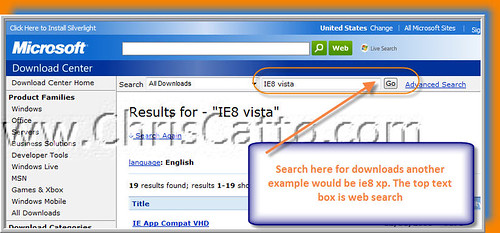
1. Goto Microsoft Download Center (if its the first time visting you may be promted to 'try the beta' on the right of that 'beta' button there is a 'no thanks' link you may click.)

2 Search for file you'd like to download ex. IE8 Vista (Below is where to download IE8 RC1)

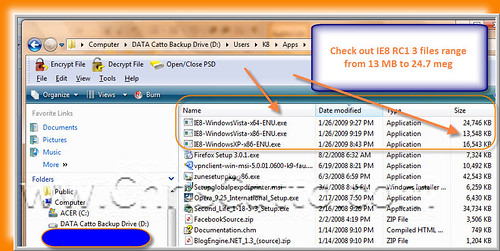
a. IE8 for XP
b. IE8 for Vista/Server 08 x64
c. IE8 for Vista/Server 08 x86

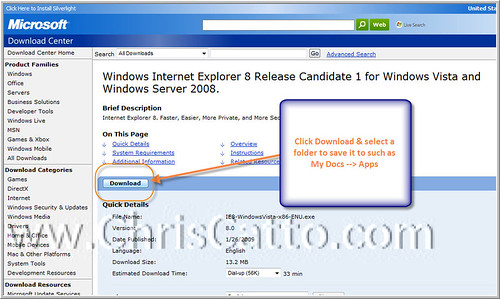
3. Click the Download button
4. Click Next (Alt + N)
5. Click Accept to leagal (Alt + A)
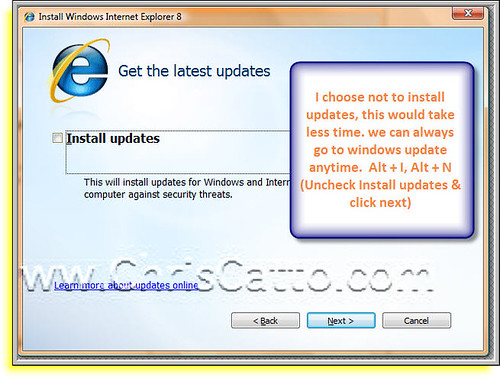
6. Check or don't check for updates & click next (Alt + I, Alt + N)
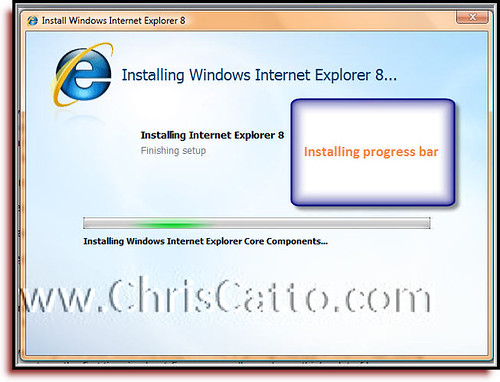
7. Click Restart


Now it's time to use it. Browsers are the top or one of the top programs people use & IE I feel is the mayflower of browsers. It's fun to install & use IE8. The best change for me after UATing the Beta versions was the Links bar changing to the Favorites bar & by default it's viewable. I also like the group tabbing. Enjoy browsing on IE8.


As always All comments welcome.

Bye for Now,
Catto


Thursday, October 30, 2008

Browsers Links/Bookmarks Toolbar

Internet Browsers you may use Links/Bookmarks Toolbar

Browsers - Important Program!

Links/Bookmarks Toolbar (One click browsing)

201 - Folders in Links/Bookmarks Toolbar

Hey Now Everybody!

Internet browsers such as IE & Firefox is the most used computer program. We have many preferences & options that are available to use. One is the links toolbar in IE or bookmarks toolbar in most other browsers. The reasons to use a link/bookmarks toolbar is to increase productivity, efficiency & user friendliness.

To use the links/bookmark toolbar once set up all you have to do is to click a favorite URL & the page will be loaded. This is more efficient than typing in an address. It's one click less that clicking the favorites menu then a favorite. A links/bookmarkbar is usually located under the address bar.

A preference is to have the address bar on the top then the links bar under it, no other toolbars are used such as Google or Yahoo Toolbar.

Since IE is the most popular browser let's inspect how to set up our links bar. First the links bar has to be displayed. This can be checked by going to the view menu (alt + V), right arrow, down arrow to links then enter. The links menu should have a check on the left of the word. The toolbars may be locked (checked) or unlocked (unchecked). By default IE has the links bar on the right side of the browser, what can be done is to click hold & drag the word links to the left of the browser window to give the user the maximum amount of space to store favorites.

To save a webpage URL/Address you may click hold & drag the shortcut icon (icon to the left of the http in the address bar) to the links toolbar. There is a black vertical I that will show & when you see that you may stop holding the mouse button & the favorite shortcut will be saved.

Toolbars 201 - Use of Folders in links/bookmarks toolbar is very efficient. This allows users to have many more favorites located on the links/bookmarks toolbar. To create your first folder in the links bar one way is to start by saving a current page to your favorites (Cntl+D, tab, L, tab, enter). In the create in choose 'Links' Then click the 'New Folder' button. Type in a short name such as Biz, press enter (or click create) & click OK (on add to favorites window).

The length of the names on my links/bookmarks toolbar is usually 1 or 2 characters. You may rename them by right clicking then rename (IE). For example you may rename Google to G.

That is all there is no more,
Bye for now!

Catto

Sunday, August 31, 2008

SharePoint, Dot Net Nuke, Skins & Social Computing

Hey Now Everybody,

In September I attended a great .NET Nuke user group meeting. It was a stellar session held by Sheldon Cohen. This meeting was about 15 people which was different since usually there is 30 - 60ish. Having a small group was good for discussion & easier to meet people. The session started early & was jammed pack. Sheldon covered skins using DNN.

Last week I attended a FLA .NET user group which was on SharePoint & Social Computing presented by Stacy Draper. The session was kind of an introduction to Social Computing & SharePoint including definitions of a blog, email & instant messaging. A point he made was that social networking is just one aspect of social computing which I thought was a good point. As always I learned a few things & it's nice to see some of my friends who I see at many events along with meeting a few new people.

I read a post by one of my favorite Evangelists Mike Benko who has a many great webcasts & a good site @ BenkoTips.com. He was looking at his blog & saw many of his post were regarding events. So I in turn have looked @ my blog & see a direction I want to go. I want to place more personal original content including MSTS exam content, browsers, RSS & efficiency.

Bye for now,
Catto