Sunday, May 31, 2009

Window 7 Tiki Hut Event


Hey Now Everybody,


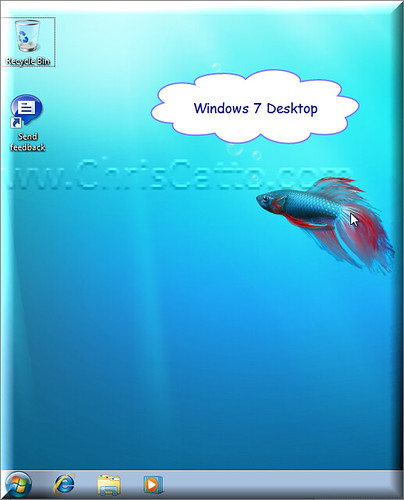
There was a Microsoft TechNet event The Tiki Hut Road Show on Windows 7 which I attendend on May 28th 2009. It was a great session where Blain Barton & Shervin 'da bomb' Shakibi presented all about Windows 7. Windows 7 is the next Microsoft Operating System
Before there was 95, 98, XP, now there's Vista soon there will be Windows 7. I've been running a virtual machine with windows 7 on it to test. Today I received the dvd & plan to install it where this version on my physical will time bomb June 1st 2010. When installing any OS on the physicall drive my preference is to fresh install & delete all my previous data.
One of the features that caught my eye was the ease of VPN (direct access). Another was a screen capture application called record problem recorder. It reminded me of a snag-it type application where you can record what steps are taken then it produces a zip file which when opened will display all the steps taken while recording including screen shots & text fo the steps. This would be ideal for help desk or documenting a training.

This was a Technet event & the MSDN event is later in June. My preference is to hear more about the development side vs. the IT Pro side therefore I enjoy the content on MSDN events a little more. At the same time this was an excellent event. IE8 is the default browser which is what I think most people will notice along with the task bar features.
As always there were some great people there including some sponsers such as
Sherstaff. I saw a few of my friends there & had a great time. That's all there is there is no more.

Bye for now,


Catto


Thursday, April 30, 2009

FileSystemWatcher 70-536 Microsoft .NET Certification Post #15

FileSystemWatcher 70-536
Microsoft .NET Certification
Post #15


Hey Now Everybody,


Please feel free to check out my MCTS 70-536 reference page on Chris Catto.com. It’s a page with a summary of all of my posts.


• FileSystemWatcher.Created – occurs when a file or directory in the specified path is created.
o When you are writing an app that needs to process files when they are added to a folder. FileSystemWatcher.Created is the event you should be respond to.
o FileSystemWatcher.Changed only occurs when an existing file is modified.
o FileSystemWatcher.Deleted occurs when a file is removed.
o FileSystemWatcher.Renamed occurs when a file is renamed


As always all comments welcome.


That’s all there is there is no more, Bye for now!

Catto

Tuesday, March 31, 2009

How To Get A $100 / yr IT Job

How To Get A $100 / yr IT Job


When preparation & opportunity meet there is strong potential. All my life I've loved technology & the past years I've really been into .NET Development. I've felt like I've contented to educate myself & prepared myself with the best knowledge to provide database drive web applications for business solutions. Last month the identification credentialing company I've worked with ~6 years which was acquired recently made a business decision to consolidate & our department was eliminated. It sure was a great opportunity for me & I started looking for an IT job & felt like it would be some good content to post about. Here are the most important items I feel:

1. Treat getting a job like a Job
2. Put a resume together & post it publically
Have multiple versions of resume
3. Network – At least Call 10 people & meet with 2 people face to face daily.
4. Prepare for Interview’s
5. Follow up with contacts
6. Negotiate & choose a position


If you want to get a job you have spend a good amount of time, treat getting a job as a job. For example I was wearing a tie everyday when I was actively looking to keep a business frame of mind & I was ready to speak to anyone anytime. The next step is BIG, put together your resume & post it publically on job sites such as monster, job.com, dice, career builder ect. & apply for many jobs. I submitted over 100 resumes & posted many publically. Over the few weeks I edited my resume quite a bit & have a few versions, for example one focused on web dev, another on T-SQL & database, another a focus on SharePoint. Networking is very important be prepared to be on the phone often & meet many people in person. Following up with contacts is extremely important including a physical thank you note. After all that is done then expect to get a few offers & choose the best fit for you, your fam, & your interests. Recruiters were very helpful for me. After placing my resume publically many recruiters contacted me. Here are some of the top recruiters & companies I met. I you are a person looking for a position or an employer looking to hire I'd recommend SherStaff. I've known Alex for a few years though our .NET user groups & he knows technology & all the best skilled people to place. Here are a few of the top recruiters I worked with:

SherStaff - Alex Funkhouser
Signature - Brian
Tek Systems - Tara
Robert Half - Omar

To me I wanted to focus on .NET web development (ASP.NET & T-SQL) working with a long term commitment on team in a positive environment & I was very glad with where I'm currently at in this type of position in the entertainment industry. I'd like to thank my family for all of their support during my search for a position.
In the end everything is negotiable so if they company offers you 89k you may have to take it. As you see getting a 100k job is the same is getting any other job.


The preceding post is my opinion & in no way reflect my current or preceding employers.


Bye Now!
Catto

Saturday, February 7, 2009

P Cubed Positive Personal Productivity South FLA .NET User Group Code Camp 2009


Hey Now Everybody,


Today is the day, our South FLA .NET User Group Code Camp! The best event all year hosted @ Devry U (thx Ed Hill). I'm so excited about today & the session I'm providing. My session is called 'P Cubed Positive Personally Productive' including

Microsoft Certifications
Everyday Efficientcy

I wanted to produce some content that a user even my ma would use everyday. I've been to many great session from INETA speakers, MVP's on a wide range of topics. Sometimes I leave & never really use any of the content they speak about. If you are unable to make the session, I"ve place a lot of my content on my blog & site. Geekfest! Geekfest! Over 600 people will be there today. Special thanks to Dave Noderer for the oppertunity to speak. Here are some links to the session content:


Hotkeys


As always all comments welcome!

Bye for now,


Friday, February 6, 2009

Outlook Mail Hotkeys #5 Hotkey of Alltime

Outlook Mail Hotkeys #5 Hotkey of Alltime

Hey Now Everybody,


The #5 Hotkey is Outlook Hotkeys. If you don't use Outlook daily then you disagree with Outlook hotkeys in the top 5, however personally I'm in Outlook all day everyday & love it. Usually I'll recieve ~150 emails per day. I'm part of many distribution lists where I don't have to read every word of every email. Outlook efficiency is critical to productivity.

Here are the top Outlook Hotkeys:
1. Ctrl + N - New Message
2. F7 - Spell Check
3. Alt + S - Send Message
4. Insert - Flag message
5. Ctrl + 1 Mail
6.
Ctrl + 2 Calendar
7. Ctrl + Shift + B - Address Book
8. Right Click, M

9. Right Click, H

Some details about the list:
1. Ctrl + N - New Message
We are always sending emails
2. F7 - Spell Check
Very important for myself I do this often
3. Alt + S - Send Message
Sending messages is common such as creating new messages
4. Insert - Flag message
Insert a flag of color red.
Ctrl + Shift + G is a hotkey to insert a flag of where the user can choose the color
5. Ctrl + 1 Mail
When in the Calendar, Tasks or Contacts this will bring the view to the mail or inbox.
6. Ctrl + 2 Calendar
When in the Mail view & wanting to check calendar Ctrl + 2 will bring the user to the calendar
7. Ctrl + Shift + B - Address Book
In a large organization I've found myself constantly looking people up in the address book.
8. Right Click, M
When in the preview pane this will move the messages into the chosen destination.
9. Right Click, H
When in preview pane you may open the attachement of the message. An Alt + O is usually next.

Outlook is so common & important you need to be organized & hotkeyified.

That is all there is now more,
Bye for now,
Catto

Thursday, February 5, 2009

Browser Hotkeys #4 Hotkey of all Time

Browser Hotkeys #4 Hotkey of all Time

The browser is the most used application, you viewing this post in a web browser such as IE right now. There are so many hotkeys that we can use when in a browser & that is why it's the #4 rated hotkey. Here is a list of my top browser hotkeys:


1. Alt + C - Favorites Center
2. Tab Navigation
3. Middle Click (Hot Click) - Open link in new tab
4. F5 - Refresh
5. Alt + D - Focus on Address bar
6. Ctrl + D - Add to favs
7. Backspace (= Stop button)
8. F11 - Full Screen
9. Ctrl + W - Close Tab
10. Esc (= Stop button)
11. Ctrl + E - Search
12. Alt + T - Tools menu
13. Alt + J - View Feeds
14. Ctrl + Shift + Del - (Delete browsing history IE8)
15. Ctrl + 0 restores Text Size

Whew! That is quite a few. Here is some more detail on them all

1. Alt + C - Favorites Center (IE7 & IE8)
I love this since I constanly use my favorites In Firefox it's Alt + B

2. Tab Navigation
Ctrl + Tab - Switch to next tab
Ctrl + Shift + Tab - Switch to previous tab
Ctrl + Q - Quick Tabs view
Ctrl + 1 Swich to 1st tab

3. Middle Click (Hot Click) - Open link in new tab
I really find this usefule say you are on search results & you middle click (click the scroll wheel down) while hovering a link & the page will open in a new tab (or window depending on you preference)

4. F5 - Refresh
I always am refreshing pages & this is how I prefer to do it.

5. Alt + D - Focus on Address bar
Quick way to navigate to the address bar

6. Ctrl + D - Add to favs
Adding to favorites couldn't be easier. I think of the D in aDD to remember this one.

7. Backspace (= Stop button)
Alt + <-- works too but I usually use Backspace since only one key beats to in my blog.

8. F11 - Full Screen
Streamlined browsing is so nice. Full screen I use so much & really love it. F11 also will restore the window to the previous size.

9. Ctrl + W - Close Tab
Closing tabs happens & this is efficent.

10. Esc - Stop
Frequenly use this when a page doesn't load quick or right so I just stop it.

11. Ctrl + E - Search
Use this to search in a search file in the top left of some browsers. In the future this box will not be there in my opinion since the address bar wil also search.

12. Alt + T - Tools menu
Tools menu is useful such as Internet Options (Alt + T, O)
Classic windows update is good too such as (Alt + T, U)

13. Alt + J - View Feeds
After viewing the feeds I useually press the up arrow & select the RSS one not ATOM, This works well.

14. Ctrl + Shift + Del - (Delete browsing history IE8)
In IE8 this is a nice new hotkey for getting to the delete browsing history with out the tools menu.

15. Ctrl + 0 restores Text Size
Sometimes the we may click & hold the Ctrl button & scroll the mouse wheel. The text will change size on the browser & to restore it you can choose this one. Browser Hotkeys more than you wanted to know I would think, however the are efficent & used everyday.

Bye for now,

Catto

The Tab Key is rated the #3 Hotkey Ever

The Tab Key is rated the #3 Hotkey Ever

Hey Now Everybody,

The Tab key in my opinion is the #3 best hotkey. Yes I hear all you saying 'The Tab key is a hotkey? It just indents 5 spaces right?' The tab key is so useful since it moves the focus of the cursor on the screen from field to field.

101 Tab Key Hotkey - Tab moves the cursor focus to the next field!
We all have to login to many applications & are usually prompted with a Username field, a password field & a submit button. Some people may click in the Username field enter the username, click in the password field enter it, then click the submit button.
Example When logging into most applications the focus is already on in the username field so a user can type the user name. Now press TAB & the cursor will move the next field which is the password so after entering the password press TAB then press enter to click the space bar. This is a much quicker way to login without having to take your hands from the home keys to move it to the mouse.

201 Tab Key Hotkey
Shift + Tab will make the focus move in the backwards direction.
This is very useful. Continuing on our previous example. Say a user enters the username, presses tab & realizes the username was fat fingered & needs to be edited since it's not correct. The focus is in the password field so press & hold the shift key then press & release tab. The cusor fucos will now be in the username field.

301 Tab Key in Save As / Open Box
The tab key is very useful in the Save As / Open window since you can move fields such as the file name or folder location from the keyboard.

Tab is great to use in a web or windows applications. I use it all day long. The tab key is not just for indenting paragraphs any longer it's the #3 rated hotkey ever in the whole world.

Bye 4 Now,
Catto