Thursday, February 5, 2009

Windows Key Hotkeys (Rated #7)


Windows Key Hotkeys


Windows key is an important hotkey. The key is located on most keyboards in-between the left Ctrl & Alt key on the left side. On most keyboards there is also one the right Alt & right click key. By itself the windows key will open the start menu. When we use this key with others it creates hotkeys. The most useful hotkey with the


Windows Key Hotkey 101 Beginner Level


Use Win Hotkey in 4 Steps
1. Press & hold windows Key (left thumb)

2. Press & release E (left middle finger)

3. Release Win Key4. Windows Explorer Opens

Vista Windows Key Hotkey

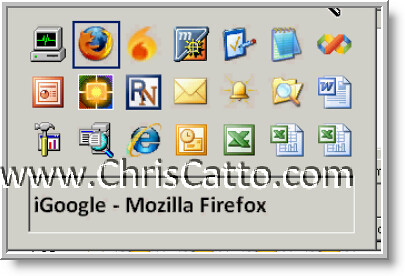
201 Advanced Level Win Key Hotkeyifies Quick Launch
This hotkey is available in Vista & Server 2008 not XP. We can use the windows button to open the first 10 shortcuts we have saved in our quick launch (located to right of Start Button) For example if Word is the fourth quick launch icon then use win + 4 to open word.


1. Press & hold Win key

2. Press & release 1

3. Release the Win Key.4. Firefox opens


XP Windows Key Hotkey

201 Advanced Level Restart & Shutdown Slickly with Win key


When restarting or shutting down in XP use hotkeys

1. Press Win Key

2. Press U (Shut Down)

3. Press R (R for restart or s two times for shut down)4. Press Enter5. PC will restart


Windows Key Hotkey 301 Guru

There are other ways to use the Windows key. When we use windows key with other letters such as L, M, F & R we have other handy hotkeys. My favorite includes locking a workstation with two keys not 3 plus 1 (Ctrl + Alt + Del, Enter). At work I lock my PC everytime I step away from my desk so I use this often.
L - Lock workstation Win + L

Pause Break – Open System Properties with Win + Pause Break (located above page up) Good to see chip speed & amount of RAM.

M – Minimize all programs Win + M

F – Find or Search for file – Win + F

R – Run – Win + R opens Run window.


If I’m on my PC for longer than a few minutes I will use Win + E hotkey at least once. I usually have 2 windows explorers open one each screen. The windows key is a very useful key & is can be combined for many hotkeys.


All Comments welcome,
Bye for now,

Opening Application Hotkeys #2 Hotkeys - Desktop Icon Shortcut Keys

Opening Application Hotkeys #2 Hotkeys - Desktop Icon Shortcut Keys

Hotkeys to Open Applications - Desktop Icon Shortcut Keys

I’m a fan of hotkeys, Here is the desktop shortcut icon (file) shortcut key. Many people double click on desktop shortcuts all the time. We can create hotkeys for desktop icons which will have a positive effect on our productivity. Instead of double clicking the desktop icon your can use a hotkey.

For Opening Applications the best 3 hotkeys are the:
Shortcut - Shortcut key (opens any app)
Win + E (opens windows explorer)
Ctrl + Shift + Esc (Opens Task Manager)

3 Steps to Use (once created) Desktop Icon Shortcut key

1. Press & hold Ctrl & Alt
2. Press & release letter (or number ex I )
3. Internet Explorer opens (different then clicking the blue E IE desktop shortcut icon)

6 Steps to Create a Desktop Icon Shortcut key

1. Open Properties window on a desktop shortcut file (right click & select properties (r))
2. Type a character in the Shortcut Key field Ex ‘I’ for Internet Explorer
3. Click OK
4. Press & hold Ctrl & Alt.
5. Press & release character Ex ‘I’
6. The program will open such as our web browser IE8 in our example.

With this one shortcut key option a user can create & use easily over 30 custom productive hotkeys. The cost is good for me too – free. We can use this hotkey over 100 times in a day. I use this for my web browsers, office applications & just about any windows programs. Below are many of the key bindings I customized along with the associated application.

I – Internet Explorer
O – Outlook
W – Word
E – Excel
M – Mozilla Firefox
C – Chat / Connect
Q – SQL Server Studio/Enterprise Manger
D – Remote Desktop
P – Control Panel
0 – Visual Studio
1 – Notepad
4 –Screen capture
5 – Snag It
G – Google Chrome
F – Flock/Fax
2 – Sea Monkey
X – Calculator
V – VPN

Desktop Shortcut Icon Shortcut keys 201 Advanced – Creating first IE Shortcut Key
Creating an IE shortcut key may require extra actions. When the properties is selected on the IE desktop shortcut file tow either of two windows will open:
IE Properties Window on Shortcut tab – if this window on this tab opens it’s the best and we only have enter our shortcut key & click OK.
The Internet Properties (internet Options) window opens – In this case we’ll close the internet Properties window. Then right click on the shortcut file again & select Create Shortcut. Then right click on the desktop & paste it which will create a new shortcut. Then on this newly created shortcut if we right click & select properties we’ll view the shortcut tab where we can create a shortcut key.

Desktop Shortcut Icon Shortcut keys 301 Guru No Desktop Icons
Desktop With No Icons – Personally I do not show icons on my desktop. I enjoy the images I select for my desktop backround. Therefore I select not to have any icons on top of the image. Even thought there are no icons shown, I use all of them by the hotkeys I created. I don’t double click the Blue E for IE I press Ctrl + Alt + I same with opening Word not by double clicking the word icon but by pressing Ctrl + Alt + W. Any time you wanted to create another hotkey or view your desktop shortcuts you still could in Windows Explorer.

3 Steps To Not Show Icons on Desktop:

1. Right clicking on the desktop
2. Arrange Icons By
3. Uncheck Show Icons on Desktop (so there is no checkmark)

Every time you double click a shortcut Icon (feel shame?) you could be replacing that slow action with a quick fast positive productive hotkey! With this powerful Keyboard Shortcut we’ll have positive personal productivity.
All comments welcome.

.Bye for now!
Catto

Alt + Tab Task Switcher Voted #1 Hotkey Ever!


Alt + Tab Task Switcher Voted #1 Hotkey Ever!

Hey Now Everybody,

Alt + Tab is my favorite hotkey & I personally voted it the #1 Hotkey ever (ha ha). If you use Alt + Tab all the time, used it before or never have tried it. The 'Task Switcher' Alt + Tab provides us a powerful keyboard shortcut to switch which tasks (windows) you are using quickly. This hotkey can easily be used hundreds of times each day positively increasing your personal productivity.

How to Use - Alt + Tab (3 easy steps)

101 Beginner Level

1. Press & hold the (left) Alt key with left thumb.
2. Press & release the tab key with your left pinky
3. Release Alt Key
You press & hold the Alt key then press & release tab then release Alt is the way to use it when you have more than one window open then your focus will now be on the window you previously used. This is great when you have many windows open since you don't have to move you mouse pointer all the way to the bottom & try to find the window on your crowded task bar then click it to have the focus on the new window.

Alt + Tab 201 Advanced Level
You may also use the Alt + Tab hotkey to place the focus on a window you have open but not used recently. You can navigate to any open window by pressing & hold the Alt key & press & release tab then press & release tab to slowly navigate to a window you desire. Choose a window (task) that you want to choose, once you are selecting the one you want (displayed by a little black box) you release the Alt key. Then your window you selected will open.

Alt + Shift + Tab 301 Guru Level

You may select a window in reverse order too. This is accomplished by pressing & holding the Alt key & then press & hold the shift key & then press & release tab. This will reverse the order you are selecting the windows which is useful sometimes.
Example 1 - For example I usually have task manager open & if I want to have the focus on the task manager window I press & hold Alt, then press & hold Shift then press & release tab. Then release shift & Alt. Since Task Manager is by default the first task listed this will work, focus is now on the task manager.
Example 2 - Another example when I use the Alt + Shift + Tab is when I press & hold Alt, then press & release tab a few times, one too many times & go past the window I want, Say I wanted to get to a task say 4th or 5th on Task Switcher menu then I pressed tab one too many times. Then I press & hold shift, press & release tab once then I'm selecting the correct task. Then I release Alt & the focus is on the correct window.Alt + Tab vs. Win + Tab Vista AdjustmentIn vista one of the first demos many of us have seen is where the task switcher is being used with a slight adjustment the tasks are displayed with large cascading images not small icons or thumbnails. This is accomplished with replacing Alt key with the Windows key (located between left Ctrl & Alt). My preference is not to use this since I feel the Alt + Tab responds quick & accurate where the Win + Tab requires a ½ a second before being active.

Increase your personal productivity & give it a try. If you're currently using Alt + Tab then I'm glad you agree with me & I wonder do you think it's the best hotkey ever?

I remember when my friend explained you have to be Gorganized (Goran's version of organized) & use Alt + Tab. He was my back seat typer for years & it wasn't long before he didn't have to tell me to use Alt + Tab any more since I was always using it. That is all there is & there is no more!

Bye Now!
Catto

Thursday, January 29, 2009

IE8 RC1 Top Features & Adjustments

Hey Now Everybody,
I've wrote
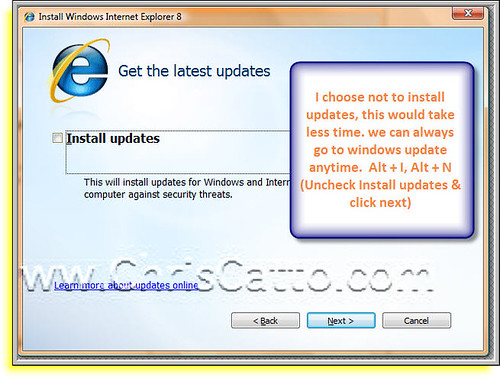
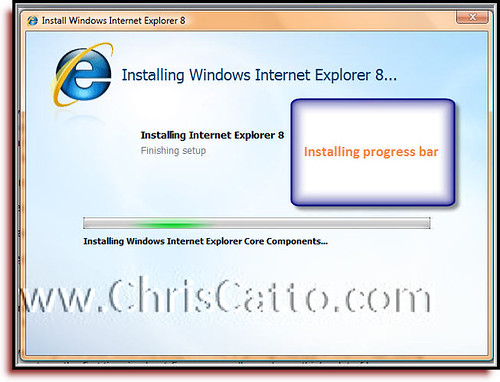
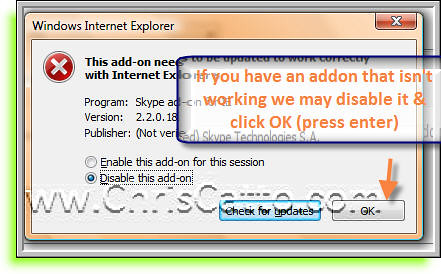
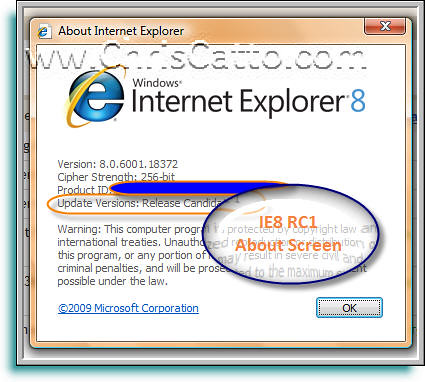
7 easy steps to download & install IE8.
Here is a list of some items about IE8 that stand out.


1. Favorites Bar Toolbar

2. IE8 RC1 Memory Usage vs. IE7

3. Tabbed Grouping

4. Ad Blocker

5. Accelleraters

6. Find (Ctrl+F)
7. Mulitple Monitor Install
8. Search (Ctrl + E)
9. Webslices

After more UATing (user acceptance testing)


1. Favorites Bar Toolbar is the best feature of IE8 RC1. Especially in full screen streamlined view (F11) since the favorites bar is visable when a user uses auto hide checked.

2. IE8 RC1 Memory Usage vs. IE7

IMHO I think IE8 uses more memory. I always felt IE had a big memory useage advantage over other browsers, since IE was better at using less memory & providing good funtionality. IE8 RC1 Memory Usage has been adjusted similar to some browsers out there now like Chrome, which uses more memory, multithreaded & multiprocesses. There are multiple iexplorer.exe processes when there are mulitiple tabs. Tabbed Grouping is a great feature & is also a factor with memory useage since a group may have a new process. Please understand there are advantages of this such as when one tab crashes you don't have to burn the whole browser a user can just close the tab, however currently when people's have less then a Gig a RAM it could be a memory hog (personally I enjoy .5G ,2G, 4G & 8G depending on PC I'm using). Few sinerios to explain:

a. Close the tab & the process doesn't end - When the group is closed the memory is not always free & the process may not end quickly, not using mem efficently.

b IE8 RC1 uses Multiple processes Example 4 tabs in IE8 can have 4 iexplorer.exe processes running (Total 300meg = 50meg, 70meg, 80meg 100meg) & in IE7 it would only be one iexplorer.exe process. (120 meg 1 process)

c. IE8 Minimizing doesn't saves memory any longer - When minimizing the app in IE7 it free'd a good percent of memory (example IE7 is open using 100meg then window is minimized & the mem usage is only 20meg). In IE8 when minimized there is no memory free'd (example if there are 3 iexplorer.exe process are running 120meg, 70meg, 52meg them minimized the prcesses will have have the same mem useage 242meg)

3. Tabbed Grouping is nice feature that color codes groups of tabs (I think there is four colors then they repeat Green, Purple, Yellow & Blue).
4. Ad Blocker - IE8 has an add blocker similar to other browsers out there now. This will make a Google ad not dislay so the content on the screen is not going to be an ad.

5. Accelleraters are good. This is how I've been using them.
a. Highlight text(example 123 main street ), b. Right click, click accelerator (ex. Google maps) c. View map of address
6. Find (Ctrl + F) is better similar to webkit with yellow highlight.

7. Multiple Monitors Restart install with multiple monitors for me required adjusting the display properties --> settings resolution. Not a big deal but I felt like mentioning it.
8. Search (Ctrl+E) is improved with images by the providers the user selects.
9. Webslices I haven't used much yet.


As Always All Comments Welcome
Bye for now,

Catto

Monday, January 26, 2009

IE8 RC1 Downloading & Installing in 7 easy steps

Hey Now Everybody,

IE8 RC1 (Microsoft Internet Explorer Release Canidate 1) is now available. When Microsoft Releases a free windows app that is used to browse the web there will be many downloads. I was thinking with the amount of download a tutorial or how to download & install IE8 would be good to post. I enjoy collecting browsers & I'm glad to use IE8.


1. Goto Microsoft Download Center (if its the first time visting you may be promted to 'try the beta' on the right of that 'beta' button there is a 'no thanks' link you may click.)

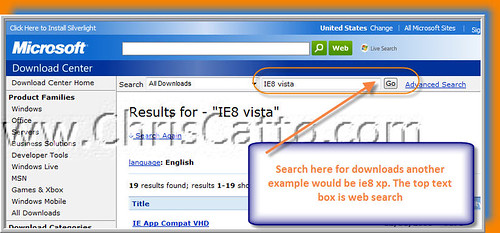
2 Search for file you'd like to download ex. IE8 Vista (Below is where to download IE8 RC1)

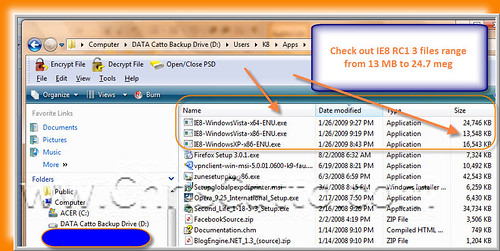
a. IE8 for XP
b. IE8 for Vista/Server 08 x64
c. IE8 for Vista/Server 08 x86

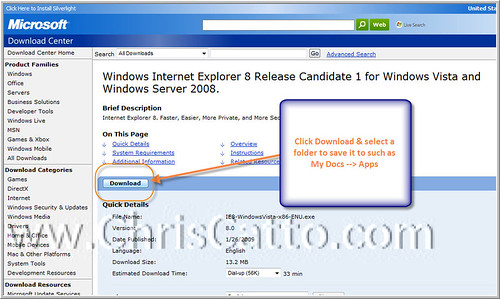
3. Click the Download button
4. Click Next (Alt + N)
5. Click Accept to leagal (Alt + A)
6. Check or don't check for updates & click next (Alt + I, Alt + N)
7. Click Restart


Now it's time to use it. Browsers are the top or one of the top programs people use & IE I feel is the mayflower of browsers. It's fun to install & use IE8. The best change for me after UATing the Beta versions was the Links bar changing to the Favorites bar & by default it's viewable. I also like the group tabbing. Enjoy browsing on IE8.


As always All comments welcome.

Bye for Now,
Catto


Saturday, December 6, 2008

Gold Coast .NET User Group Holiday Party 208 Carl Franklin


Gold Coast .NET User Group Holiday Party

Hey Now Everybody,

Carl Franklin & friends were here along with ribs from Lucille’s Bad to the Bone were in the house Whoo Hoo! .NET 3.5 SP1 Charts is coding with fun for me & tonight there weren’t many charts. I was so happy to attend our GC .NET User Group where C Franklin was & gave a session on VB.NET. Somebody said there is a date for MS C# team is ending & being dissolved, turning black like Mr. Black’s XP. C, Ken, Dr. K & Huck were stellar. There were 3 sessions:

Ken Spencer spoke of SQL MAG & was similar to last year discussing 3D & WPF. He spoke of large goverment agency apps with 80,000 users. 3 D World is what it's about.

C Franklin – Impeccable – Code for for fun! Playing his piano in CT from a keyboard in FLA. The Larry King of .NET Carl was stellar!. @ the end of the night after I ate about 2 1/2 racks of ribs Carl broke out his guitar & played many songs. PWOP Embasador !He spoke of hardware MIDI Could you imagine the keyboard hotkeys on a massive keyboard like that. Chris Sells metioned & he is the next on DNR I think gotta check though. Digital Audio a good library . PWOP Line. This is where the fun is! Thanking us for sharing the fun with code with us & encourage to obsess over good code.


Huck
& Dr. K – Surface! The highlight of the night aside from Carl was Surface. There was not a real Surface in the building & we did see some classic flix. This guy is like one of the 5othperson to get an MS SQL cert or something like that. Huck INETA he is an excellent presenter along with Dr. Peter Kuhn. Huck supports INETA! Thanks to INETA, Homnick’s, Alex from Sherlock Recruites & Sherv for the event.

As always all comments welcome!

Thx,
Catto

atto n Carl


Saturday, November 29, 2008

BitArray & Argument Exceptions 70-536 Microsoft .NET Certification Post #14

BitArray & Argument Exceptions 70-536
Microsoft .NET Certification
Post #14


Hey Now Everybody,

Please feel free to check out my MCTS 70-536 reference page on Chris Catto.com. It’s a page with a summary of all of my posts.
This post is on section 1. Developing Application that use system types & collections. Here are a few important concepts from the 1st section. As I stufy for this test I thought this would be good to post on to learn the content & others would be able to view & comment on it.


• BitArray class – is a resizable collection that can store Boolean values, In addition to being resizable, it upports common bit-level operations such as And, Not, Or, & Exclusive-or(XOR) The BitArry class would be efficient if you are writing an app that needs to perform Boolean math on a set of 42 bits.
• BitVector32 – structures purpose is to aid in manipulating bits in a 32bit integer, and it is perfect for IP address. BitVector32 is not a resiable collection at all. Instead it is fixed at 32bits
• ArrayList – does not support Boolean math
• Boolean is a single bit value.
• InvalidOperationException – Throw an InvalidOperationException if a property set or method call is not appropriate given the object’s current state. EX used if calling assembly called the method to read the filebefore specifying the file name.
• You should throw an ArgumentOutOfRangeException when a caller provides a value for a parameter but that value is invalid
• ArgumentException is a base class for all argument exceptions. You should use more specific whenever appropriate, specifically ArgumentOutOfRangeException & ArgumentNullException
• ArgumentNullException when a calling assembly provides a null value for a parameter that must have a value.
• Both SortedList & an implementation of IDictionary can be accessed by using a key

As always all comments welcome.


That’s all there is there is no more, Bye for now!

Catto