Tuesday, November 4, 2008

MCTS 70-536 Microsoft Certification .NET 2.0

MCTS 70-536 Microsoft Certification .NET 2.0
Hey Now Everybody,

I’m going to start posting on some content I’ve been studying for a Microsoft Certification Technical Specialist Exam (MCTS) 70-536. I’ve created a page on my domain ChrisCatto.com where I’m going to have a summary & a bunch of links to all my posts.
I feel that this will be some great content & it will also help me to study by working more with the material. I’ve been sources I’ve been studying is from the self paced training book. I’ve been reading the book & there is also a cd that you get with the book. The cd includes ~400 practice questions that have been really good for me to learn from. They are broken down into 7 categories. I’ve created a word document that is over 70 pages from these questions. I plan to make many small posts so any one can read one post & learn a small topic or use it as a reference.
As always all comments welcome.
Bye for now!
Catto

Thursday, October 30, 2008

Browsers Links/Bookmarks Toolbar

Internet Browsers you may use Links/Bookmarks Toolbar

Browsers - Important Program!

Links/Bookmarks Toolbar (One click browsing)

201 - Folders in Links/Bookmarks Toolbar

Hey Now Everybody!

Internet browsers such as IE & Firefox is the most used computer program. We have many preferences & options that are available to use. One is the links toolbar in IE or bookmarks toolbar in most other browsers. The reasons to use a link/bookmarks toolbar is to increase productivity, efficiency & user friendliness.

To use the links/bookmark toolbar once set up all you have to do is to click a favorite URL & the page will be loaded. This is more efficient than typing in an address. It's one click less that clicking the favorites menu then a favorite. A links/bookmarkbar is usually located under the address bar.

A preference is to have the address bar on the top then the links bar under it, no other toolbars are used such as Google or Yahoo Toolbar.

Since IE is the most popular browser let's inspect how to set up our links bar. First the links bar has to be displayed. This can be checked by going to the view menu (alt + V), right arrow, down arrow to links then enter. The links menu should have a check on the left of the word. The toolbars may be locked (checked) or unlocked (unchecked). By default IE has the links bar on the right side of the browser, what can be done is to click hold & drag the word links to the left of the browser window to give the user the maximum amount of space to store favorites.

To save a webpage URL/Address you may click hold & drag the shortcut icon (icon to the left of the http in the address bar) to the links toolbar. There is a black vertical I that will show & when you see that you may stop holding the mouse button & the favorite shortcut will be saved.

Toolbars 201 - Use of Folders in links/bookmarks toolbar is very efficient. This allows users to have many more favorites located on the links/bookmarks toolbar. To create your first folder in the links bar one way is to start by saving a current page to your favorites (Cntl+D, tab, L, tab, enter). In the create in choose 'Links' Then click the 'New Folder' button. Type in a short name such as Biz, press enter (or click create) & click OK (on add to favorites window).

The length of the names on my links/bookmarks toolbar is usually 1 or 2 characters. You may rename them by right clicking then rename (IE). For example you may rename Google to G.

That is all there is no more,
Bye for now!

Catto

Sunday, September 28, 2008

Browsers & Google Chrome


Hey Now Everybody,


As you may or may not know Google released a new web browser called Chrome in early September. As soon as you see it you realize the different UX on the browser since the tabs are at the tippy top & not a menu bar or address bar. Web browsers such as Chrome & IE (internet explorer) are the single most used application therefore they are extremely important. Think for a quick second, you’re reading this in a browser & probably using IE7 (if it’s ~2008). For the average user (like my Mom) a browser may be the only program that they use aside from an Office app such as Word or Outlook. With that two important items regarding browsers to take with you are:

Bookmarks / Links toolbar (use the toolbar including folders)
A browser preference that you have the option to use is use the bookmarks or links bar. Within the bar you may use folders to create added efficiency & organization.

Browsers Memory Usage – (Minimize then maximize IE to save memory)
Temporary slowness can occur to browsers & can make our systems temporarily slow. This may occur when a browser gets to a page that uses a large amount of memory or many tabs open. We can take actions to free up memory & make a system / browser quicker again. I love & often use this next sentence. When IE is minimized then maximized again there is a great deal of memory freed. Browsers such as Chrome that are multithreaded has advantages too, each tab in Chrome is a separate process therefore when a tab gets closed the memory is then free again.
You’d never guess but I’ve made some more lists, of my opinions after UAT’ing (User Acceptance Testing) Google’s Chrome browser
K8’s Chrome’s Top N List:
1. Open Source - The code is open source with the WebKit rendering engine. Therefore people can contribute to the project which is a good thing. Google’s mindset is to learn from people on the web. An example is the TOS (Terms of Service). Google displayed actions very quickly to how they will accept feedback & learn from others. Initially there were quite a few negative posts on the TOS (Terms of Service). Section 11 was adjusted a few days after Chrome was release. Originally the section was a long, legal verbiage & stated basically that anything you did with the browser Google would have rights over, now the section is one simple sentence stating the individual has rights to all of their own content.
2. Omnibox – this is the name of the ‘address bar’ that Chrome uses. I really like this feature since it has intellisense when typing & it acts like a Google search. In the recent IE & Firefox browsers there is a search window on the top right (Ctrl+E) this makes two text boxes on the top of ht browser. The Omnibox is here to stay since it’s two for one (a search window & address bar) with intellisense.
3. New Tab Page – this feature is also here to stay. When opening a new tab (Ctrl+T) in a traditional browser the page opens a blank, info or home page. When opening a new tab in Chrome it shows the 9 most used pages as thumbnails, along with the most recent closed tabs & bookmarked pages. What this does is makes it easy to get to pages you frequent. It looks similar to the quick tabs view (Ctrl+Q) in IE.
4. Speed / Multi-Threaded / Memory Usage – The speed of the browser is supposed to be quicker than other browsers. I’m not sure on that & would love to see some technical tests. I do personally think that it runs JavaScript faster than other browsers. What I do really like is how the browser is Multi-Threaded, were each tab has its own process. This means a user can end the process for one tab & it won’t affect the other. Memory usage is interesting to me since there is a task manager with-in the browser itself which makes it easy to close a tab if it’s not responding & the other tabs will remain untouched. Please keep in mind IE8 beta 2 is multithreaded too.
5. Incognito mode (Ctrl+Shift+N) Browsers these days have this feature where a user can browse & not keep any data on the local system such as browsing history, cache & cookies. I use this feature when shopping for diamonds for my wife so if she looks @ the history she won’t know what pages I was on.
6. RSS – It’s re-dogone-diculous that Chrome doesn’t support RSS. This is the biggest area where Chrome can improve. I really feel that strongly about this one & sure it’ll be there someday. When on a page that has an RSS feed to subscribe to there is not an easy way to subscribe. IE7 had this option as a button (alt+J). Firefox does too & I think the UX will be similar to Firefox with an RSS image in the Omnibox.
7. Focus of buttons & textboxes - Similar to Safari since them both use Webkit I really like the feature when a button or a textbox has the focus it is highlighted & easy to see. Once you use this you won’t want to go back. Someday all browsers will use this feature. It wasn’t discussed much but I feel this is such a nice feature I had to mention it.


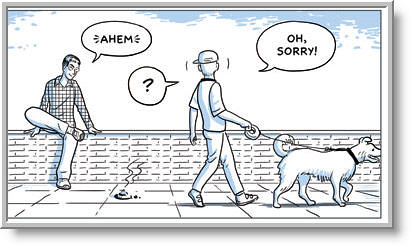
The Gears team from Google really produced a great browser. In time we’ll see if the community adopts it. One way we’ll be able to measure this is the amount of add-on’s are created by the community. If you look at Firefox there are a large number of add-ons which displays how much the community loves Firefox. The image is from the Chrome comic book displaying how Chrome is a safe browser & I thought it was so funny I added the image to the post. Everyone will not use chrome but the web is better with it.


As always all comments welcome. That’s all there is there is no more.


Bye for Now,


Catto

Sunday, August 31, 2008

SharePoint, Dot Net Nuke, Skins & Social Computing

Hey Now Everybody,

In September I attended a great .NET Nuke user group meeting. It was a stellar session held by Sheldon Cohen. This meeting was about 15 people which was different since usually there is 30 - 60ish. Having a small group was good for discussion & easier to meet people. The session started early & was jammed pack. Sheldon covered skins using DNN.

Last week I attended a FLA .NET user group which was on SharePoint & Social Computing presented by Stacy Draper. The session was kind of an introduction to Social Computing & SharePoint including definitions of a blog, email & instant messaging. A point he made was that social networking is just one aspect of social computing which I thought was a good point. As always I learned a few things & it's nice to see some of my friends who I see at many events along with meeting a few new people.

I read a post by one of my favorite Evangelists Mike Benko who has a many great webcasts & a good site @ BenkoTips.com. He was looking at his blog & saw many of his post were regarding events. So I in turn have looked @ my blog & see a direction I want to go. I want to place more personal original content including MSTS exam content, browsers, RSS & efficiency.

Bye for now,
Catto

Tuesday, July 1, 2008

FLA .Net User Group Meeting SharePoint


Hey Now Everybody!

The FLAdotNET user group SharePoint session presented by David McNamee was great. The focus was on SharePoint Designer where he showed some nice examples of controls such as a data driven Data View. Personally I enjoy working in SharePoint designer specifically since you don't need access to the server to make some nice adjustments to pages, & you can edit the page directly in a non ribbon IDE similar to Studio .

Special thanks to Beanstalk Networks for providing the facility. The people were nice to see such as Terry, Dave, Morgan & many more. I asked how to display charts similar to a control like the data view Mac stated buy a 3rd party compony. Mac's presentation included some extremely vulgar explicates it was truly rated R. He from Tampa (~5 hrs) & Mac's impersonations were really funny epically those of Russ (calling out raffles) & Joe (adjusting his glasses as only Devfish does explaining some code). Within SharePoint designer there can be adjustments to the master page content place holders that can made a site not look so SharePointy.

I ate some pizza & got a few Code Mags along with a t-shirt. When I went outside I got a delicious taco that they were handing out on Clematis street from Rocco's Taco.

All commments welcome.

That is all there is there is no more. Bye for now,

Catto

Friday, June 20, 2008

Catto won a 4 GB Zune!


Hey Now Everybody,
I won a 4 GB Zune from Microsoft for attending a webcast and filling out a survey! I couldn’t believe the email when I read it, it stated it wanted to verify my shipping address so I replied & the Microsoft rep said it would be shipped out soon.

About a week later I received it. Whoo whoo! The webcast was ‘MSDN Webcast: Windows Server 2008 and Hyper-V Virtualization’ I’ve viewed many webcasts & really enjoy them. As you can see in the picture I have .NET Rocks playing. That is all there is there no more.

Bye for now!
Catto

Thursday, May 22, 2008

HHH Microsoft Event Launch '08 Ft Lauderdale

Hey Now Everybody,

I attended the Microsoft Event Launch 2008 in Ft. Lauderdale HHH(Hero's Happen Here) this month & had a great time. There were some great sessions & presenters including Joe 'Dev Fish' Healy , Jonas Stawski, Max 'Put it together, Powershell guru' Trinidad, Blain Barton & Glen Gordon.
The events topics was Windows Server 2008, SQL Server 2008 & Visual Studio 2008. I recieved a copy of all of these along with Vista ultimate, which was a very nice gift. I'm building a PC that I'm planning to install Windows Server 2008 & I'll post on soon including the 8 gigs of ram I plan to place in there.
There were quite a few people I got to see there such as Dave, Larry, Morgan along with many other people I have met & it's nice to talk technology with people at these events & .NET user groups. Check out a couple quick clips I posted.

All comments welcome!

That's all there is, there is no more.

Bye for now!

Catto